# Currency format

{% hint style="success" %}
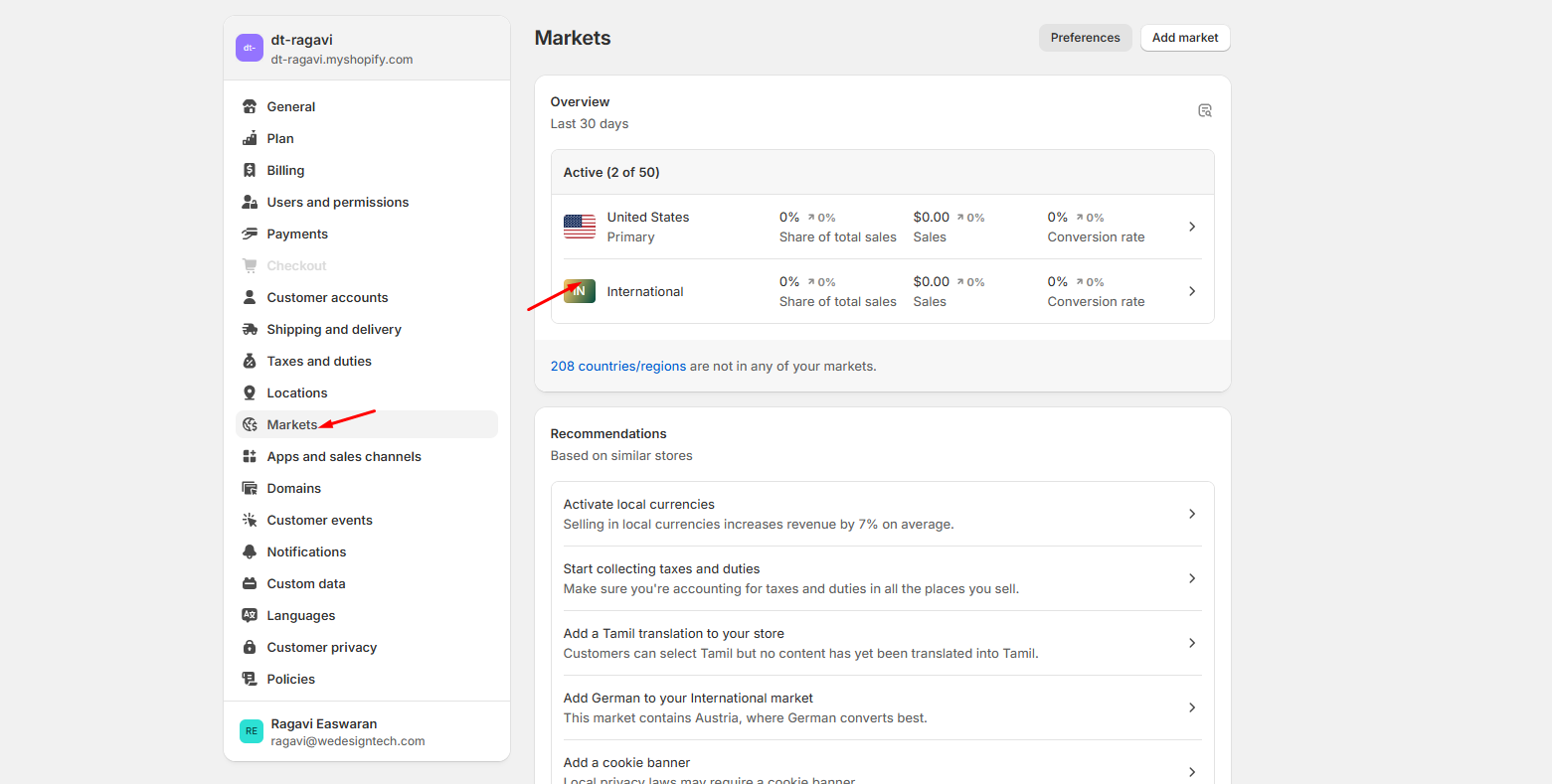
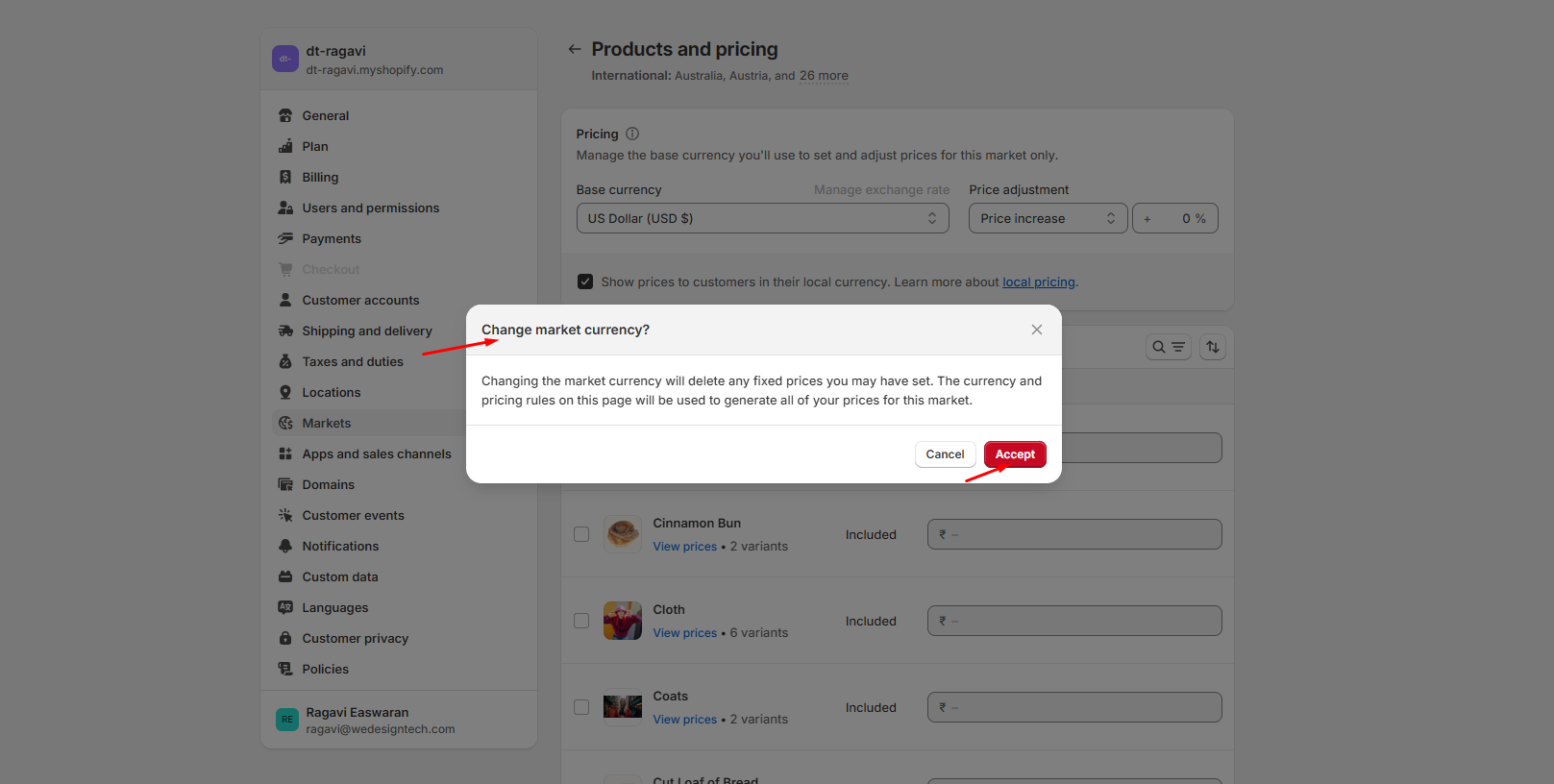
**Step 1:**  Go to **Shopify Admin > Settings > Markets**

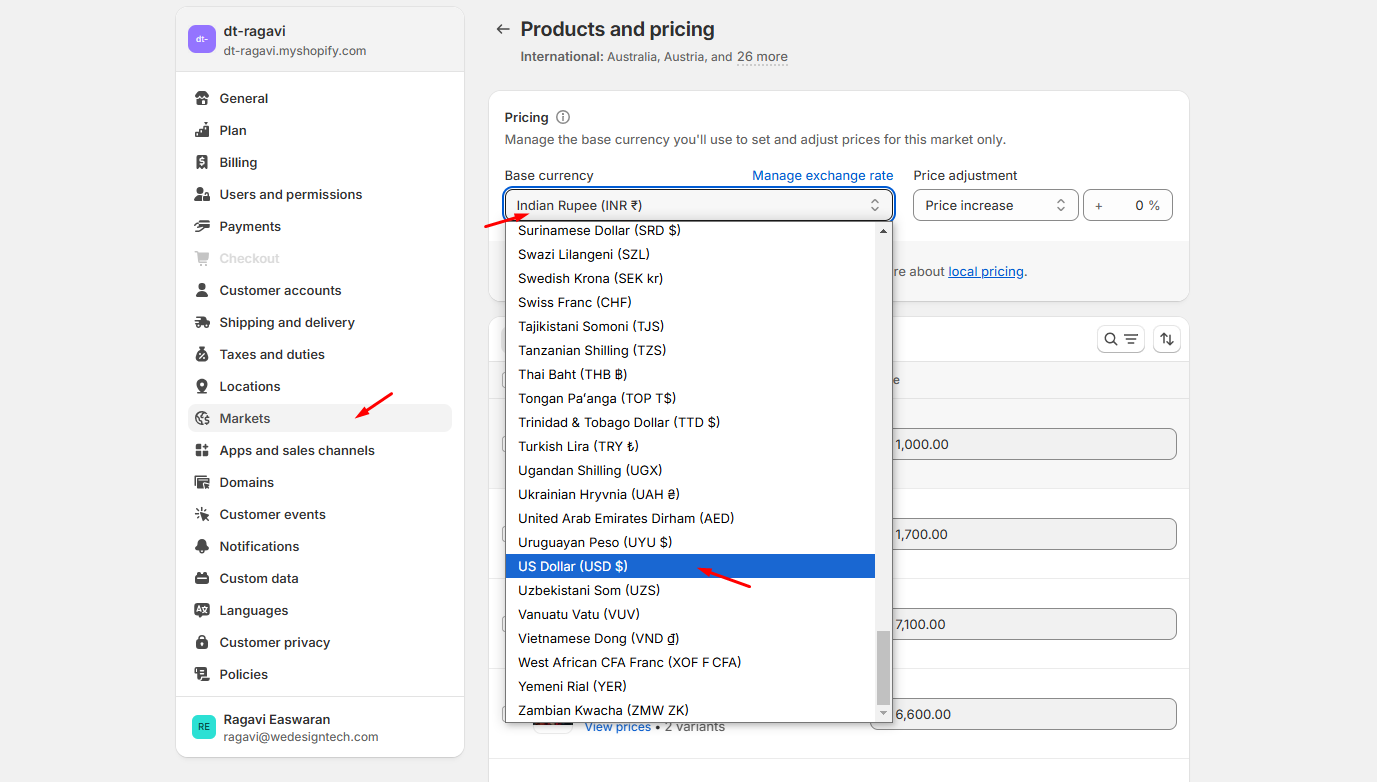
**Step 2:** Click on **"International" > Then click on "Product and Pricing"**

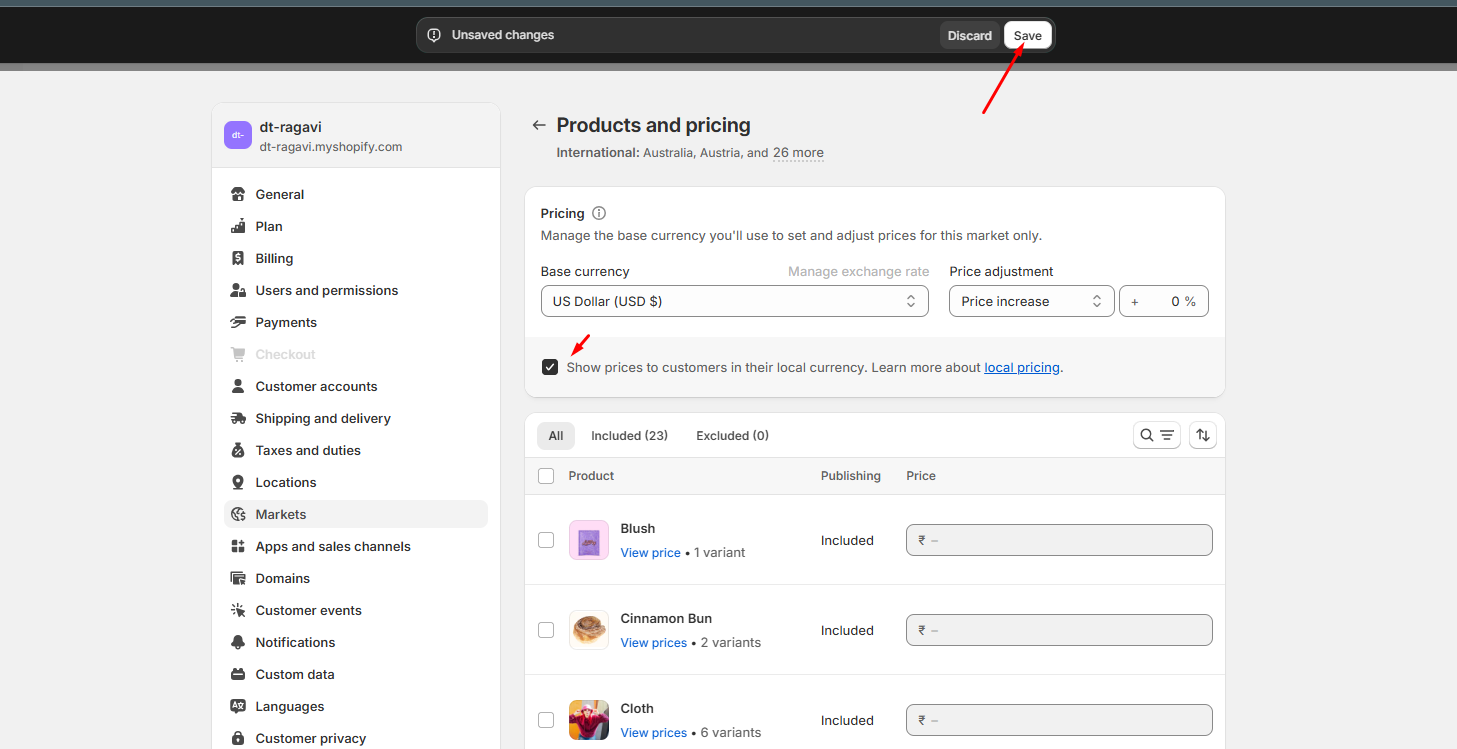
&#x20;**Step 3:** Select US Dollar **(USD $)** and check the box to show pricing

&#x20;**Step 4:** Click the **"Save"** button at the top

&#x20;**Step 5:** A **"Change Market Currency"** popup will appear, click the **"Accept"** button.
{% endhint %}

<figure><img src="https://content.gitbook.com/content/muqcyLPXqEgNVpPpK0tq/blobs/AB6dVZWwpUQ6Y9ZkhHG0/ex.png" alt=""><figcaption></figcaption></figure>

### Apply Currency Format to Theme:

{% hint style="success" %}
**Step 1:**  Go to **Shopify Admin > Online Store > Themes**

**Step 2:**  Click on **"Theme Settings" > Then go to "Currency Format" > Enable "Show currency codes" > Save**

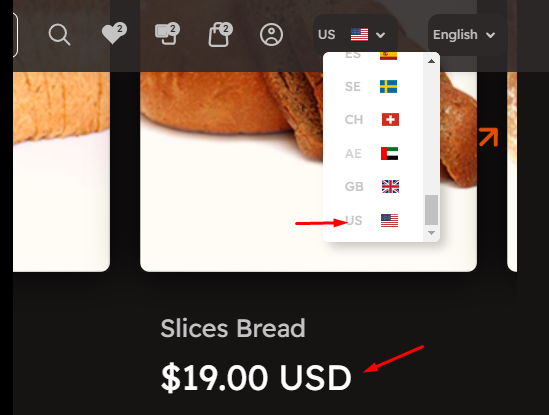
&#x20;**Step 3:**  The currency will now be enabled in the **header (link) > Select “US” state.**

&#x20;**Step 4:**  Finally, all product currency formats should now be updated.<br>
{% endhint %}

<figure><img src="https://content.gitbook.com/content/muqcyLPXqEgNVpPpK0tq/blobs/K7M10maBOb2wc5FGmvTl/international.png" alt=""><figcaption></figcaption></figure>

<figure><img src="https://content.gitbook.com/content/muqcyLPXqEgNVpPpK0tq/blobs/b9Yw3WyeMeRmY4nYzj10/Screenshot_1.png" alt=""><figcaption></figcaption></figure>

<figure><img src="https://content.gitbook.com/content/muqcyLPXqEgNVpPpK0tq/blobs/NZKe92Jdg6419JVJRV4u/Screenshot_2.png" alt=""><figcaption></figcaption></figure>

<figure><img src="https://content.gitbook.com/content/muqcyLPXqEgNVpPpK0tq/blobs/Bs00LtFJ2Va02L3mcAcx/Screenshot_3.png" alt=""><figcaption></figcaption></figure>