# Form Image
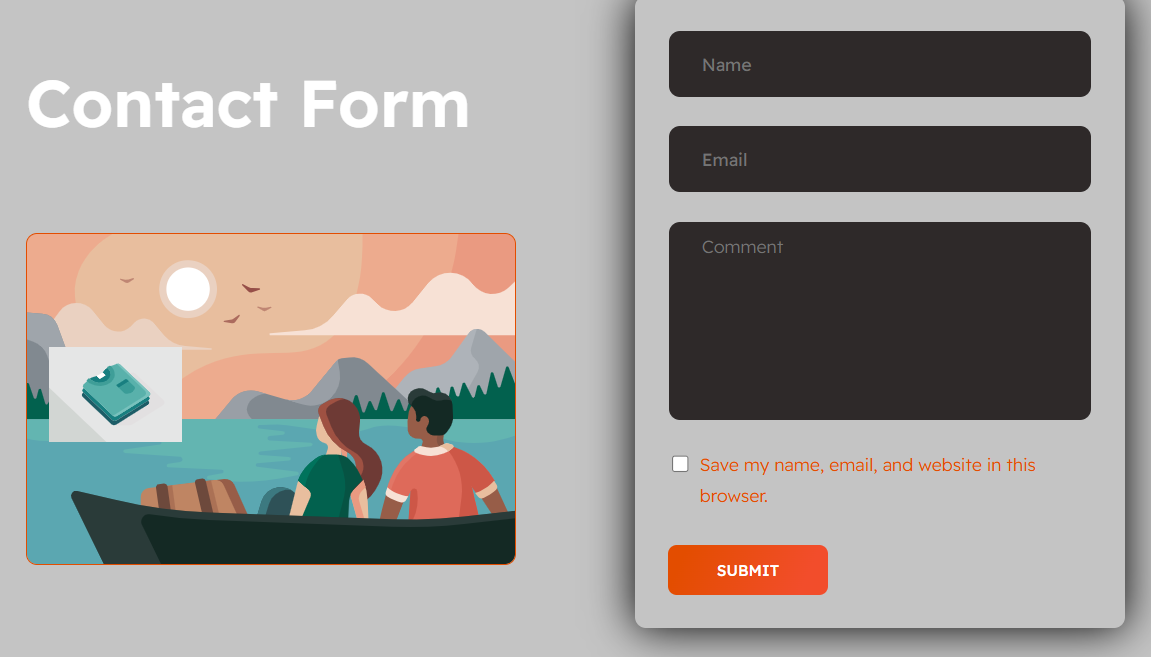
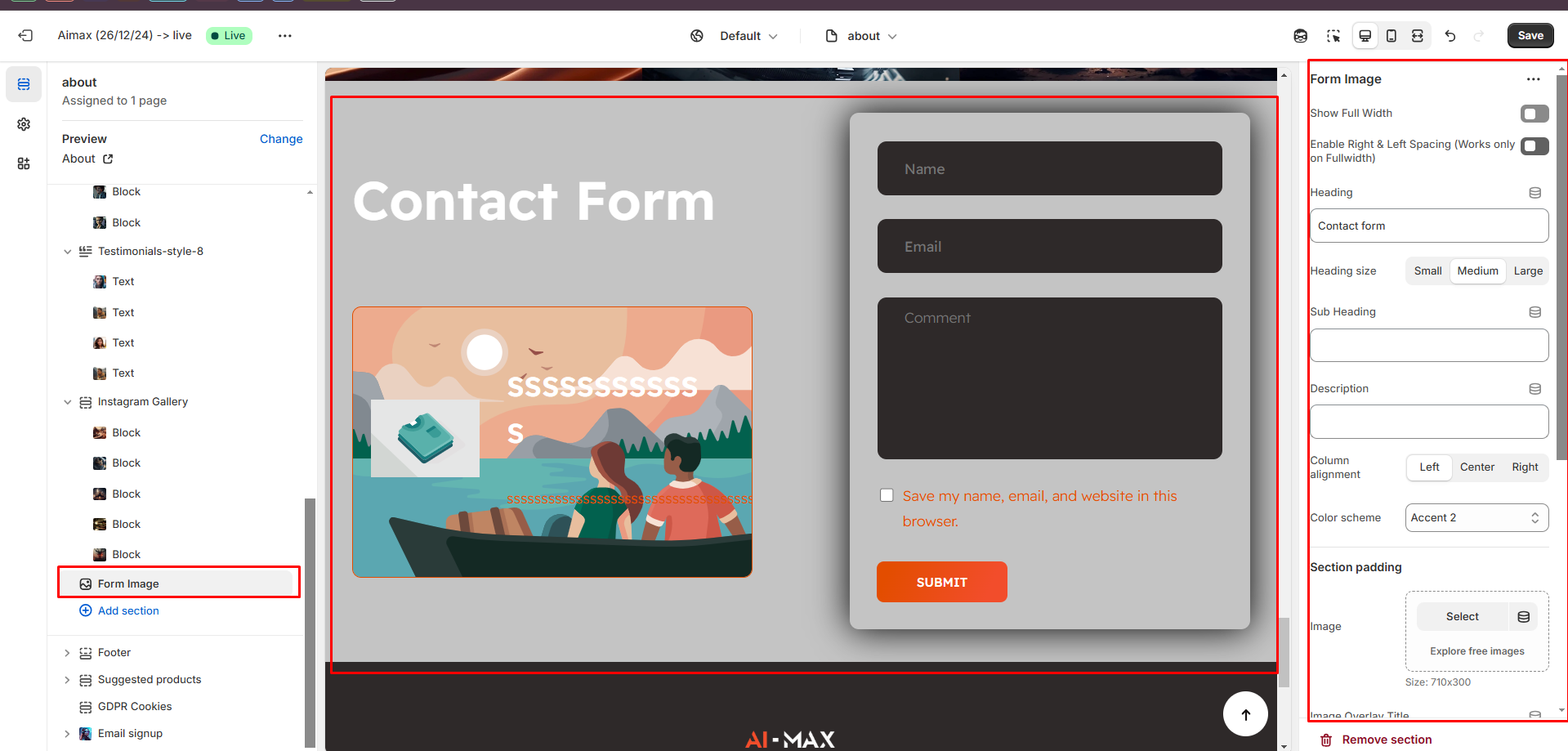
The **Form Image Section** allows you to display a **contact form alongside an image**, helping customers easily get in touch while maintaining a visually appealing layout.
{% hint style="success" %}
* **Go to** Shopify Admin > **Online Store > Themes**.
* Click **Customize** on your active theme.
* In the Theme Editor, click **Add Section > Form Image**.
{% endhint %}
* **Show Full Width:** Expands the section across the entire screen width.
* **Right & Left Spacing :** Add **spacing** to the **Full Width** layout (applies in full-width mode).
* **Heading:** Set a custom title (e.g., "Hot & Top Trends").
* **Heading Size:** Choose for size Small, Medium, or Large
* **Subheading:** Add additional text if needed.
* **Body Text:** Add a description (e.g., "Best arrivals this week").
* **Color scheme :** You can customize the section’s appearance by changing the **text color, background color**, and more using preset color options.
* **Column alignment:** Column can be aligned as per the content alignment requirement (Left,Right,Center)
* **Padding:** Top Padding and Bottom Padding are used to adjust the spacing above and below a section in Shopify, improving the layout and readability.
* **Image :**Upload the image that appears left to form
* **Image Overlay Title:** The Title that appears above the image
* **Image Overlay Description:**The description that appears above the image
* **Image Overlay Icon:**The image that appears above the image\